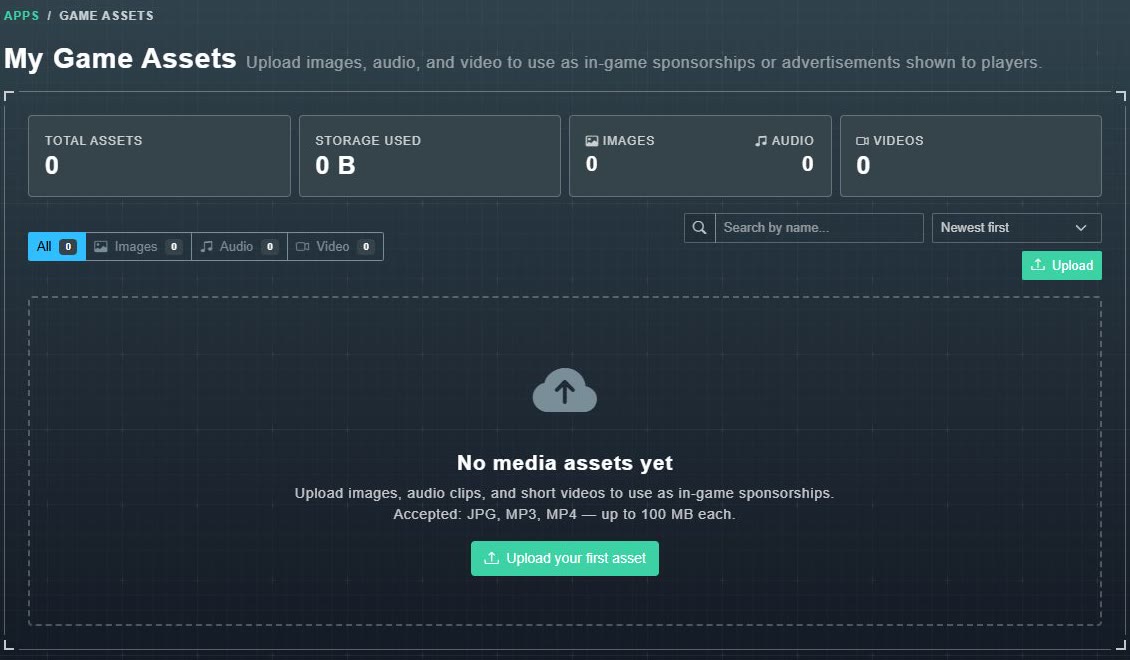
My Game Assets in the sidebar is where you keep the pictures, sounds and short videos you want to use with your games. The page describes it as: Upload images, audio, and video to use as in-game sponsorships or advertisements shown to players.
#What is on the page
- Counters for Total Assets, Storage Used, Images, Audio and Videos.
- Tabs All, Images, Audio and Video, each with a count.
- A search box (Search by name...) and a sort menu: Newest first, Oldest first, Name (A-Z) and Size (largest).
- An Upload button.
#Upload files
-
Choose Upload (or Upload your first asset when the library is empty).
The Upload Media Assets window opens. It reads: Accepted: JPG, MP3, MP4 - max 100 MB each. You can drop multiple files at once.
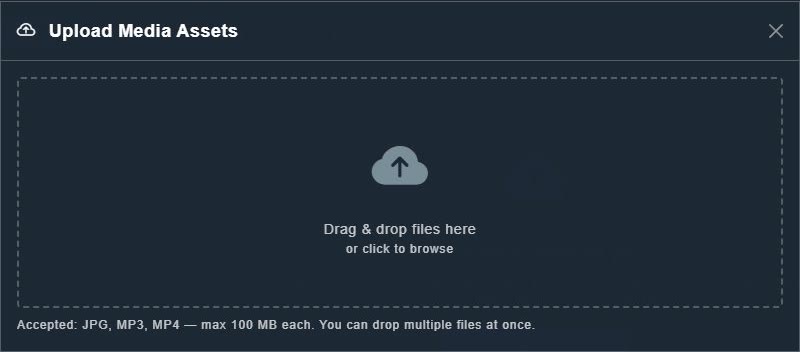
The Upload Media Assets window. -
Drag files onto the window, or choose it to browse for them.
The files upload and appear in your library.
#Work with an asset
Each asset has a tile with its file name. The buttons on a tile let you Copy URL, Delete it, and, for images and videos narrower than widescreen, Convert to 16:9. Choose a tile to preview it. Deleting asks you to confirm and cannot be undone.