Choose Learn More on any game to open its page. The panels run down the page in this order. This article uses Mobo BINGO as the example.
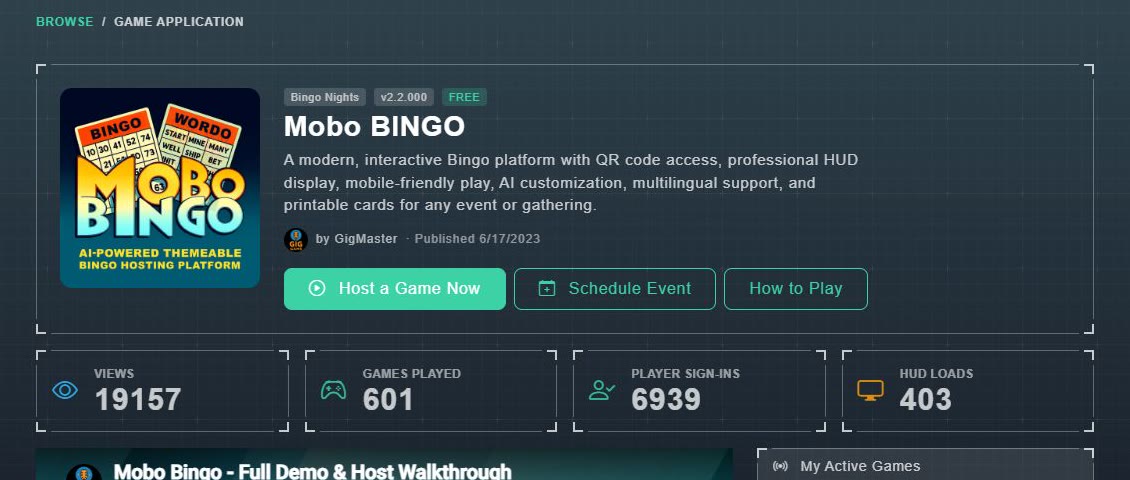
#The top of the page
- The game's name, a category badge, its version, and a FREE badge where the game is free.
- The description, and the buttons Host a Game Now, Schedule Event and How to Play. (A game that is not released yet shows Coming Soon.)
- Counters for Views, Games Played, Player Sign-Ins and HUD Loads.
#About this Game and Videos
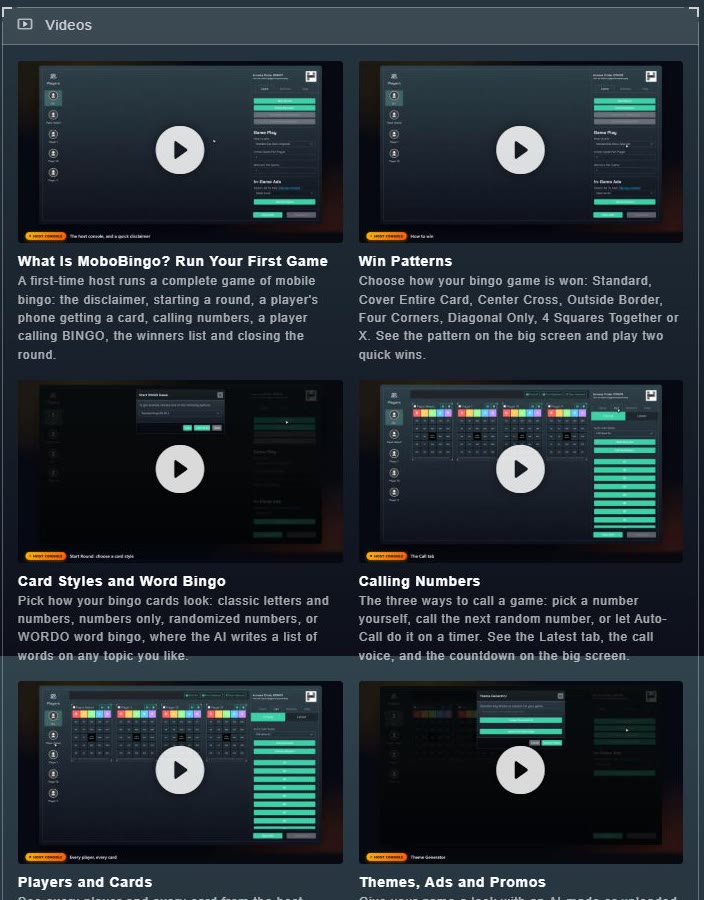
About this Game describes what the game is, its key features, and who it is for. Videos shows short demo and how-to videos, usually a full walkthrough plus one for each part of the game. Watch a couple before your first session.
#Activity, calendar and history
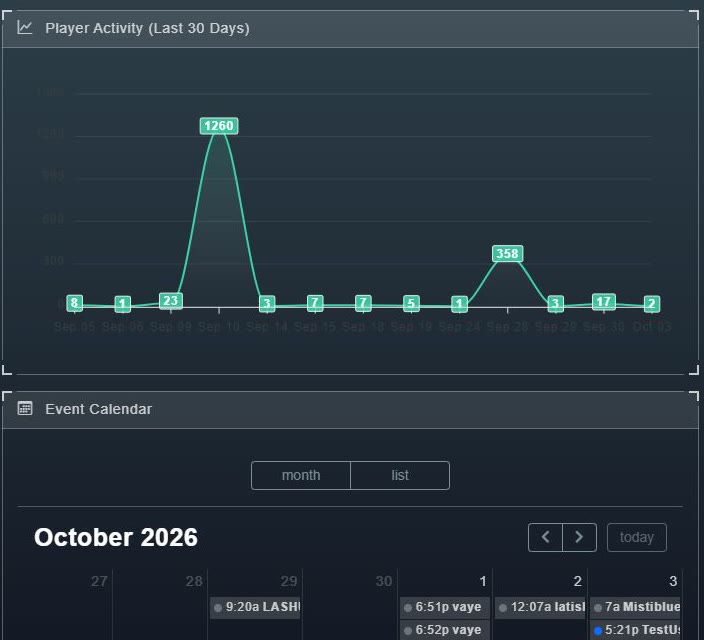
- Player Activity (Last 30 Days) is a chart of how many players the game has had each day.
- Event Calendar shows events that are scheduled for this game on a month calendar.
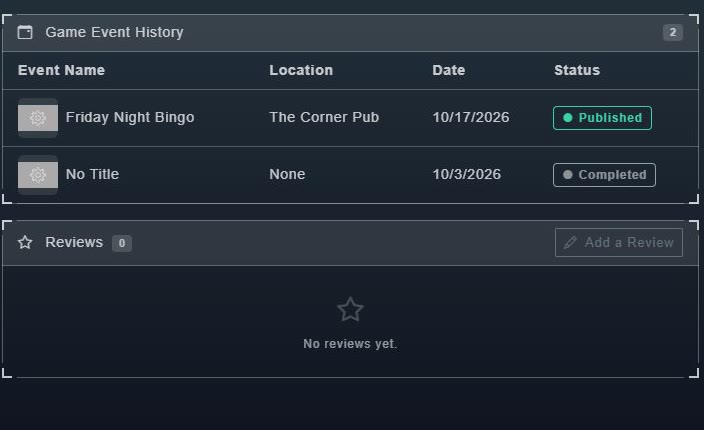
- Game Event History lists your own events for this game, with each one's name, location, date and status (for example Published or Completed).
#The right-hand column
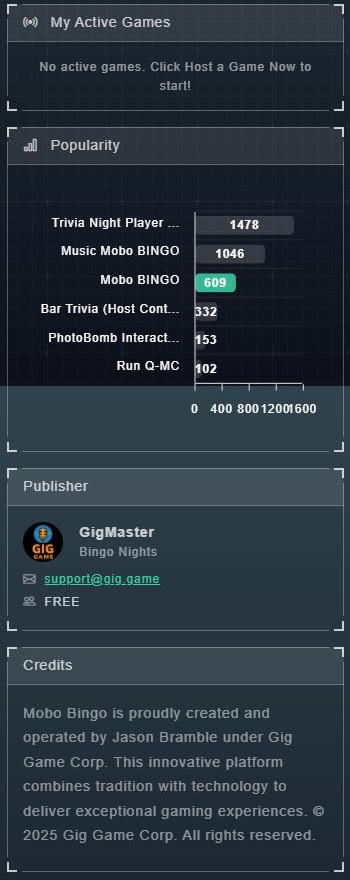
- My Active Games lists your running games of this type. When there are none it says: No active games. Click Host a Game Now to start!
- Popularity compares how much this game has been played with other games.
- Publisher shows who made the game, their category, a support email address, and FREE or a Players Per Token rate.
- Credits, where the publisher gives credit to the people behind the game.