#Subscribe
-
Open Subscription in the sidebar and choose Subscribe on the plan you want.
The checkout page opens for that plan. A summary box shows Today's Payment and Next Payment, with the date it will be taken.
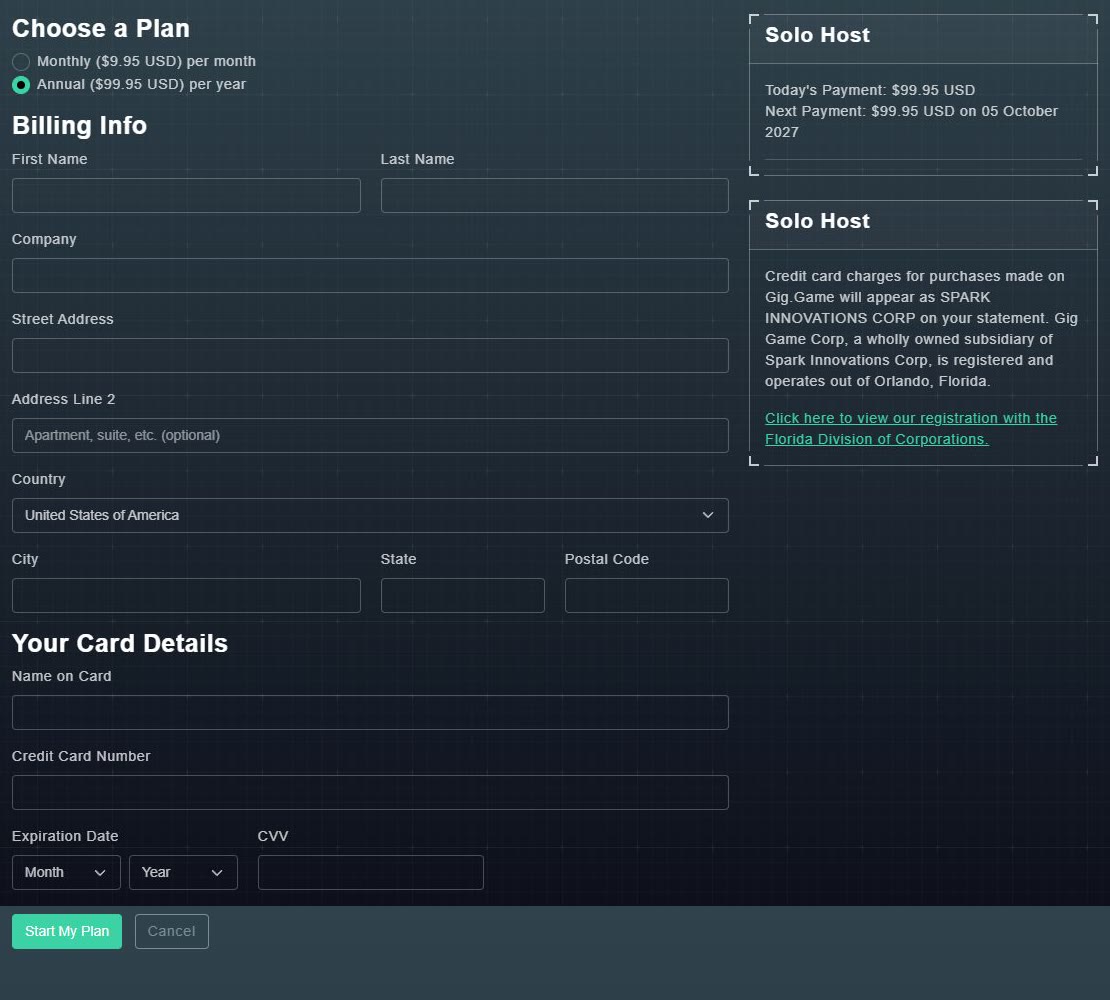
The checkout page. -
Under Choose a Plan, pick Monthly or Annual.
The summary updates with the amounts for that choice.
-
Fill in Billing Info: name, optional company, address, country, city, state and postal code.
These details appear on your receipt.
-
Enter Your Card Details: the name on the card, the card number, the expiry month and year, and the CVV.
Your card is ready to be charged.
-
Choose Start My Plan. (Cancel returns to the plans.)
Your plan starts, and a confirmation page follows. The new player limit shows at the top of the Hub.
#The new-user offer
New subscribers may see an offer on the checkout page, with an expiry date: first month free on a monthly plan, or 20% off the first payment on an annual plan. When an offer applies, Today's Payment shows the reduced amount and Next Payment shows the full price and its date.
#Upgrade or downgrade
When you already have a plan, the other plans on the Subscription page show Upgrade Subscription or Downgrade Subscription instead of Subscribe, and your current plan shows Continue. Choose one to open its checkout. When you change plan, the Hub works out the difference between what you have paid for and the new plan, and shows it as today's payment.
#Cancel
-
On the Subscription page, choose Cancel Subscription.
A window asks: Oh no, we don't want to see you go! Are you sure this is what you want to do? You may be shown an offer to stay at a reduced price first.
-
Pick a Reason for Cancellation and, if you like, add Additional Feedback.
A reason is needed to continue.
-
Choose Submit Feedback and Cancel, and confirm.
You are asked to confirm: Are you sure you want to cancel your subscription?