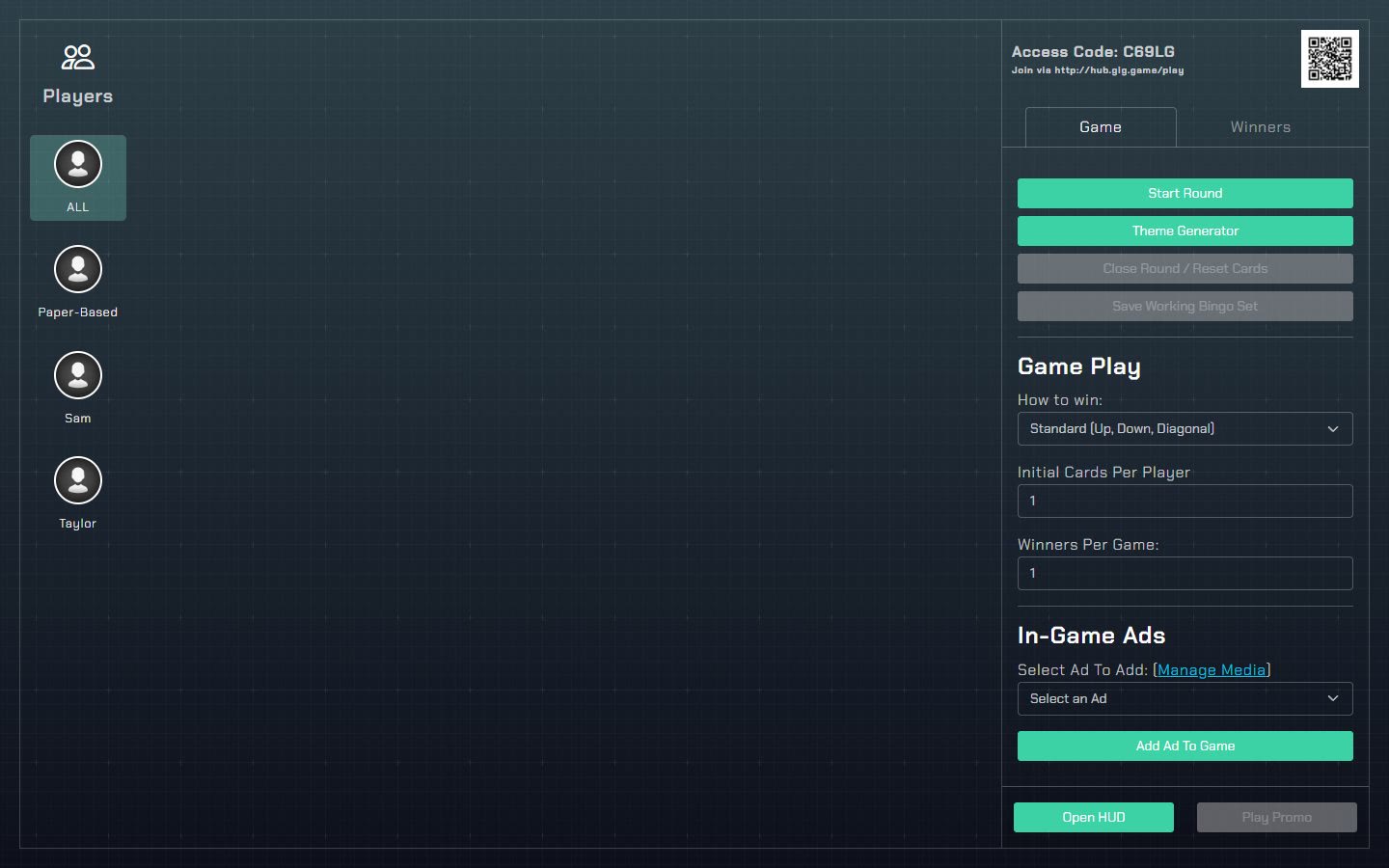
The Host Console is your control screen. You run the game from it: you see who has joined, you see the access code and QR code, and you use the game's own controls. Players never see it.
#Ways to open it
| From | How |
|---|---|
| A new game | Choose Host a Game Now on a game's card or page. The console opens for you. |
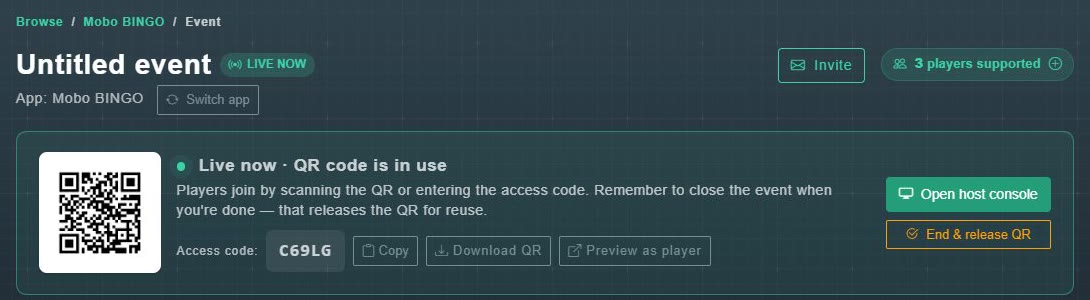
| A scheduled event | Open the event from My Game Events, make sure it is started, then choose Open host console. |
| A game that is already running | On the game's page, the My Active Games panel lists your running games for that game. If you have none, it says: No active games. Click Host a Game Now to start! |
#What is on the screen
The layout depends on the game, but every console shows the same three things.
- The players who have joined, usually down the left side.
- The Access Code and QR code, at the top right.
- The game's controls, to the right of the player list.