Open My Player Contacts and choose the Settings tab. These settings apply to every message you send from the Contact Manager.
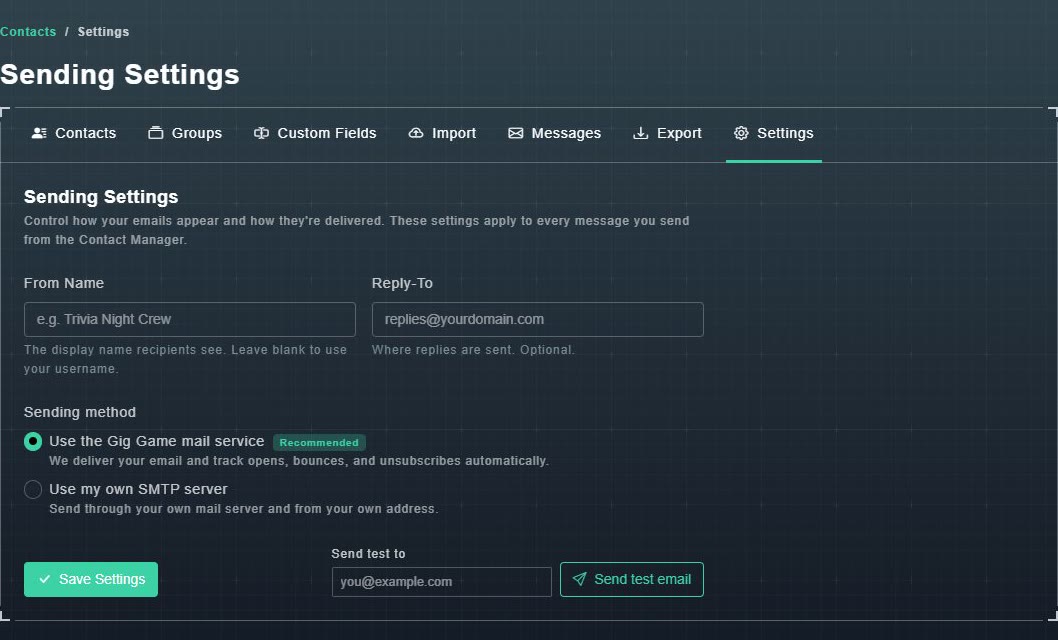
#From Name and Reply-To
- From Name is the display name recipients see. Leave it blank to use your username.
- Reply-To is where replies are sent. It is optional.
#Sending method
| Choice | What it means |
|---|---|
| Use the Gig Game mail service (Recommended) | Gig Game delivers your email and tracks opens, bounces and unsubscribes automatically. |
| Use my own SMTP server | Your email goes through your own mail server and from your own address. Opens are still tracked, but automatic bounce and spam-complaint suppression, handled by Gig Game's mail service, is not available. |
For your own server, enter the From Email, SMTP Host, Port (587 is filled in), Use SSL/TLS (on by default), Username and Password. Fields marked with a red star are required.
#Save and send a test
-
Choose Save Settings.
Your settings are stored.
-
Type your own address under Send test to and choose Send test email.
A test message arrives. This is the quickest way to prove an SMTP server works.