#Add a contact
-
Open My Player Contacts and choose Add Contact.
The Add Contact window opens.
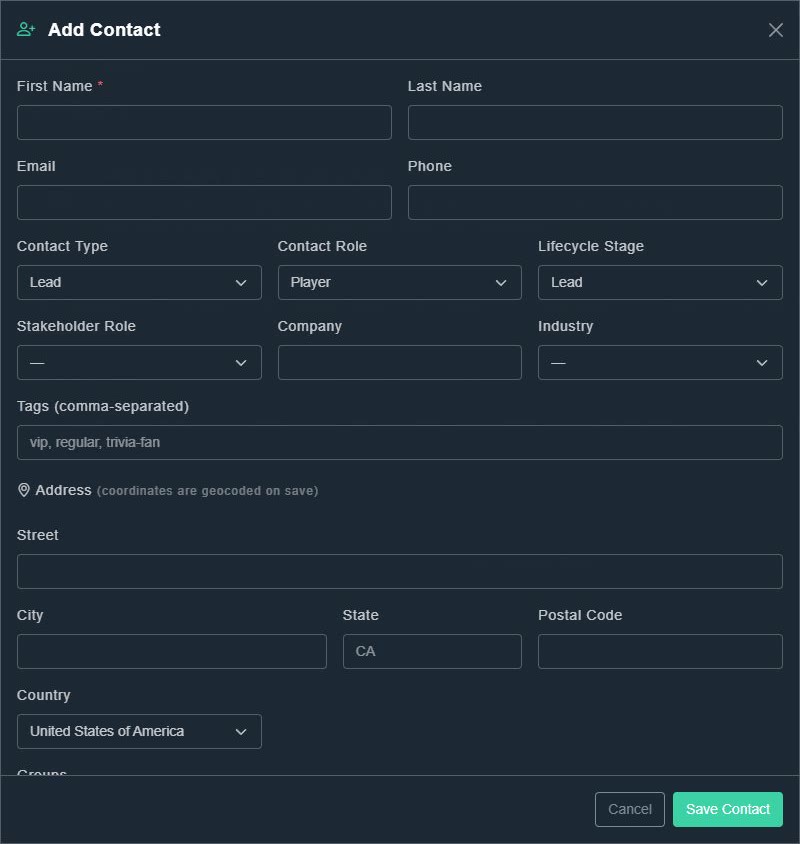
Add Contact. -
Type a First Name. It is the only required field. Add a Last Name, Email and Phone if you have them.
The basics are filled in.
-
Optionally set the Contact Type, Contact Role and Lifecycle Stage (see the table below), plus Stakeholder Role, Company and Industry.
The contact is classified.
-
Optionally add Tags (separated by commas, for example vip, regular, trivia-fan) and an Address. The address is geocoded when you save, which means Gig Game works out its map position.
The extra details are stored.
-
Choose Save Contact.
The person appears in your list.
#The classification choices
| Field | Choices |
|---|---|
| Contact Type | Lead, Prospect, Opportunity, Customer |
| Contact Role | Player, Host, Community Member, Organizer, Vendor, Sponsor, Staff |
| Lifecycle Stage | Lead, Active, Returning, VIP, Dormant, Dead |
| Stakeholder Role | Decision Maker, Influencer, Champion, Front Line, Gatekeeper, Executive Sponsor |
#Search, filter and sort the list
- Search contacts... finds people by what you type.
- Columns chooses which columns show. The list can show Name, Email, Phone, Type, Role, Stage, Subscription, Events and Last Activity.
- Reset puts the list back to its default view.
-
Choose Filter & Sort, then Add filter.
A filter row appears. Filters say: all conditions must match.
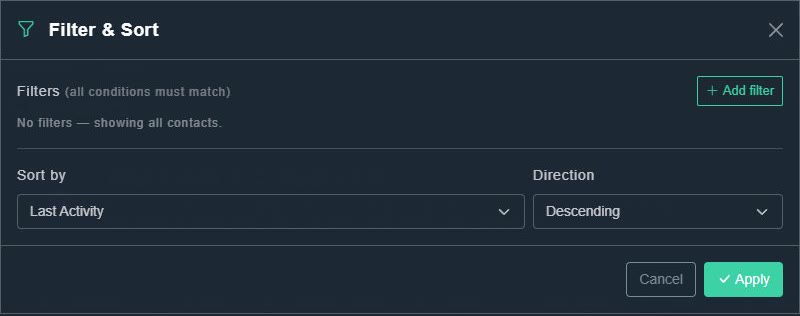
Filter & Sort. -
Choose the field (for example Role, Stage, Tags or Group), a condition (contains, equals, does not equal, is empty or is not empty) and a value.
Only matching contacts will be listed.
-
Choose Sort by (for example Last Activity) and the Direction, then choose Apply.
The list updates.
#Open a contact
Choose a name to open the Contact Detail page. It shows Contact Information, Event History, Messages Sent, a Summary, and an Activity Log, and you can edit the contact from there.