Open My Player Contacts, choose the Import tab, then choose where to import from under Import From.
#Import from an event
This brings in the players of one of your events, with the details they entered when they joined. See what players enter to control what is collected.
-
Under Import From, choose From an Event.
Your events are listed with their date, status, number of Players, and ticks for whether Email and Phone were collected.
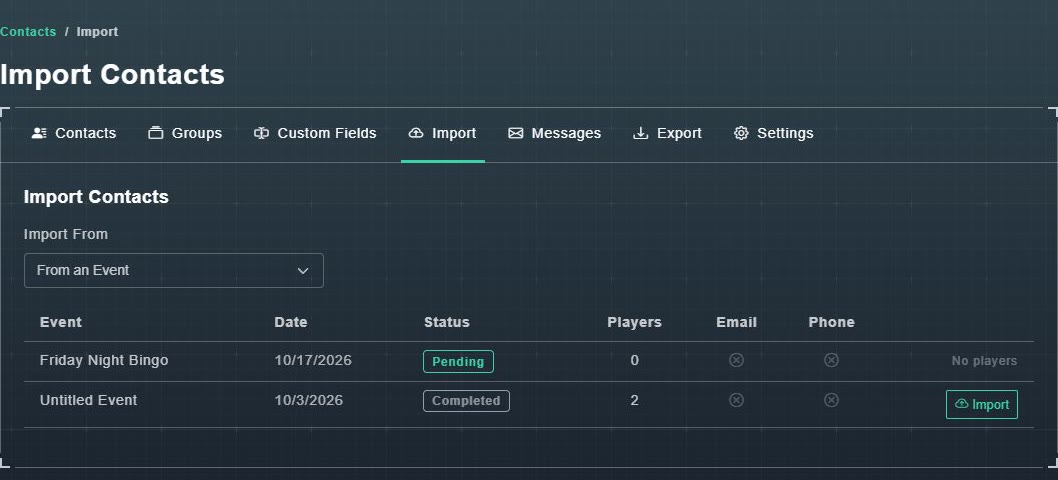
Importing from an event. -
Choose Import on the event you want. An event with no players says No players.
You are offered the import options (see below), and the players become contacts.
#Import from a file
-
Under Import From, choose From a File (CSV / Excel).
A four-step guide appears: 1. Upload, 2. Map Columns, 3. Options, 4. Done.
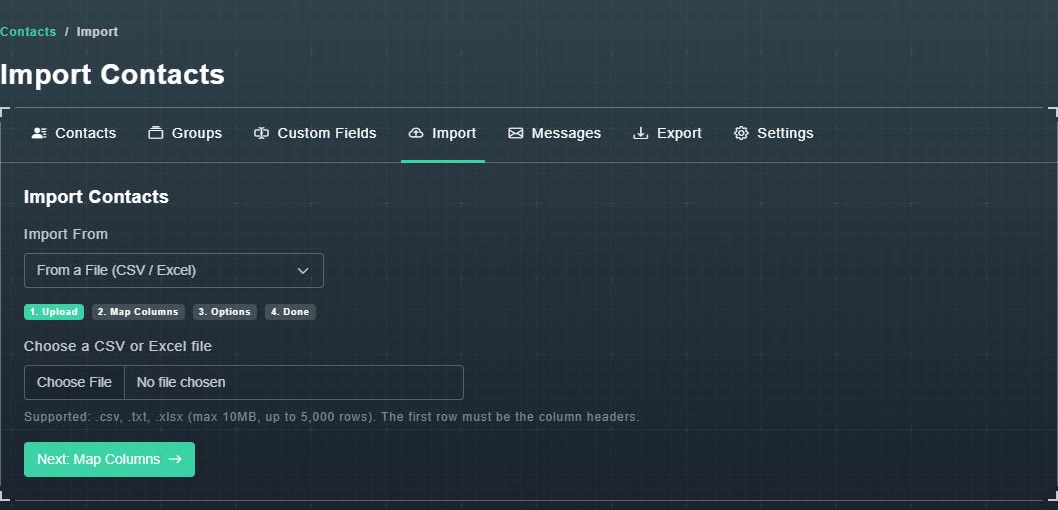
Importing from a file. -
Choose your file. It can be .csv, .txt or .xlsx, up to 10 MB and 5,000 rows, and its first row must be the column headings. Then choose Next: Map Columns.
Your columns are listed.
-
Match each of your columns to a contact field, then continue.
Gig Game knows which column is the email, which is the name, and so on.
-
Set the options and finish.
The Done step shows what was imported.
#The import options
- Group: Don't add to a group, Add to an existing group, or Create a new group.
- Match on: Email, Phone, or Email or Phone (try both). This is how Gig Game decides that an imported person is already one of your contacts.
- If a contact already exists: Merge & update (overwrite with imported values), Merge missing only (fill blank fields), or Create a duplicate contact.
- Custom fields from an event: Create and merge existing custom fields (match by name), Create all new custom fields from event data, or Do not import custom fields.