#Write the message
-
Open My Player Contacts, choose the Messages tab, then Compose New Message. (Invite on an event page opens the same page already linked to that event.)
The Compose Message page opens.
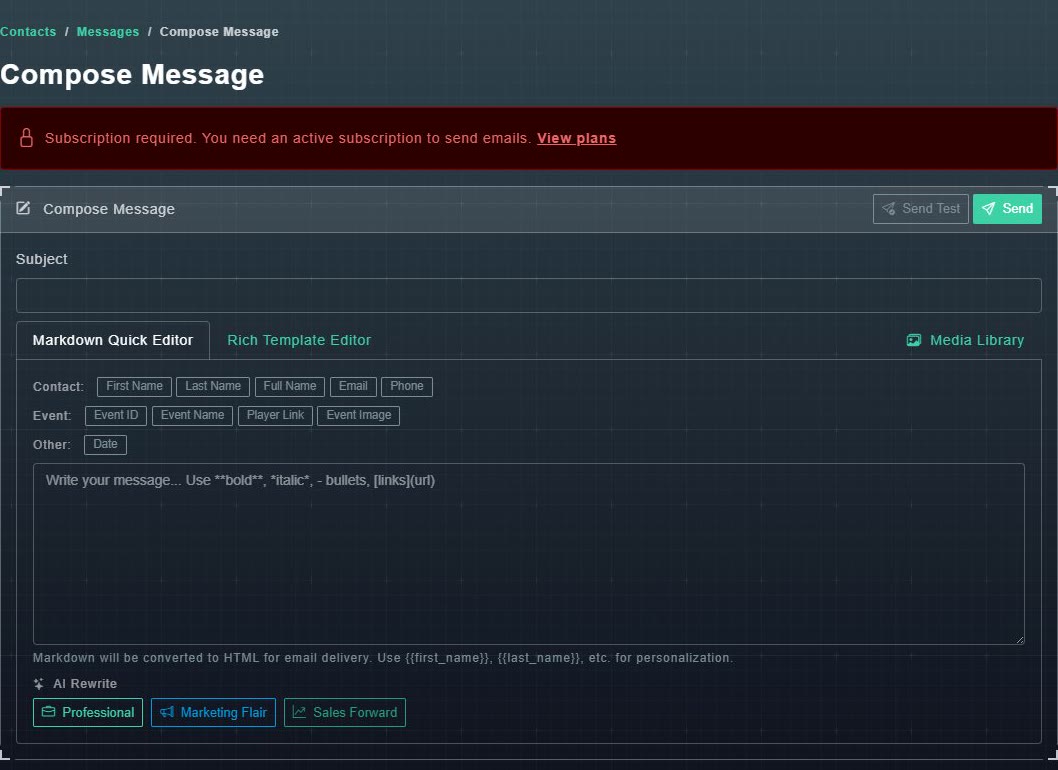
Compose Message. -
Type a Subject.
A subject is required.
-
Write your message in the Markdown Quick Editor. Use bold, *italic*, - bullets and links.
It is converted to a formatted email when it is sent.
-
To personalize it, choose a placeholder button where you want the detail to go.
A tag such as {{first_name}} is inserted and replaced for each person. See the table below.
| Group | Buttons |
|---|---|
| Contact | First Name, Last Name, Full Name, Email, Phone |
| Event | Event ID, Event Name, Player Link, Event Image |
| Other | Date |
The event placeholders are filled in when you link the message to an event.
#More ways to write
- AI Rewrite has three buttons, Professional, Marketing Flair and Sales Forward, that rewrite your text in that style.
- Media Library lets you choose one of your uploaded images.
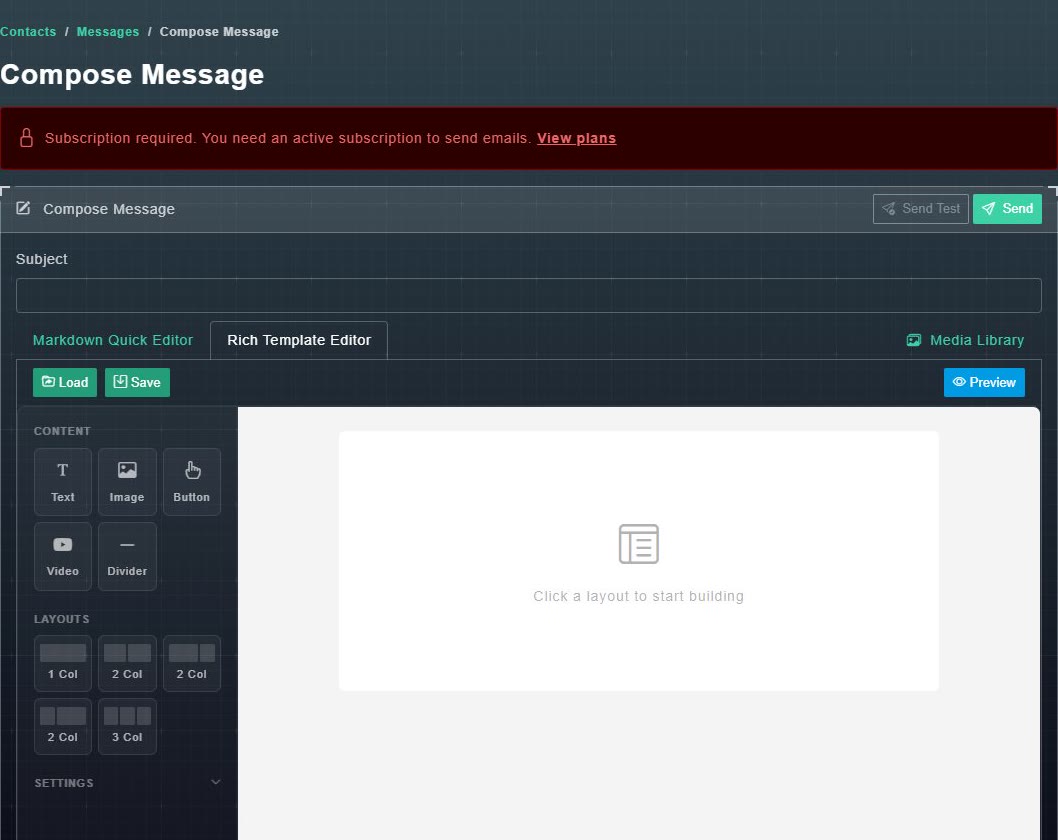
- The Rich Template Editor tab is a drag-and-build editor: add Text, Image, Button, Video and Divider blocks, and choose a layout of one, two or three columns. Use Preview to see the email, and Save and Load to keep a template and reuse it.
#Send a test, then send
-
Choose Send Test, type your own address under Recipient Email, and send.
A test copy arrives so you can see how it looks.
-
Choose Send.
A window asks who it goes to.
-
Under Recipients, choose Select Contacts, By Group, By Role or By Stage, and then pick the contacts, group, role or stage.
The audience is set.
-
Optionally, under Associate with Event, pick an event so the event placeholders are filled in.
{{event_name}}, {{event_id}} and {{player_link}} use that event's details.
-
Choose Send Email.
A message appears: Message queued - sending to N recipient(s) in the background.