You decide what information players give when they join. What they enter feeds your event's lead list.
-
Open the event and choose the Players & Data tab.
The Sign-in fields card shows what is currently collected: Auth required, Phone and Email.

Current sign-in fields. -
Choose Configure sign-in.
The Sign-in field settings window opens.
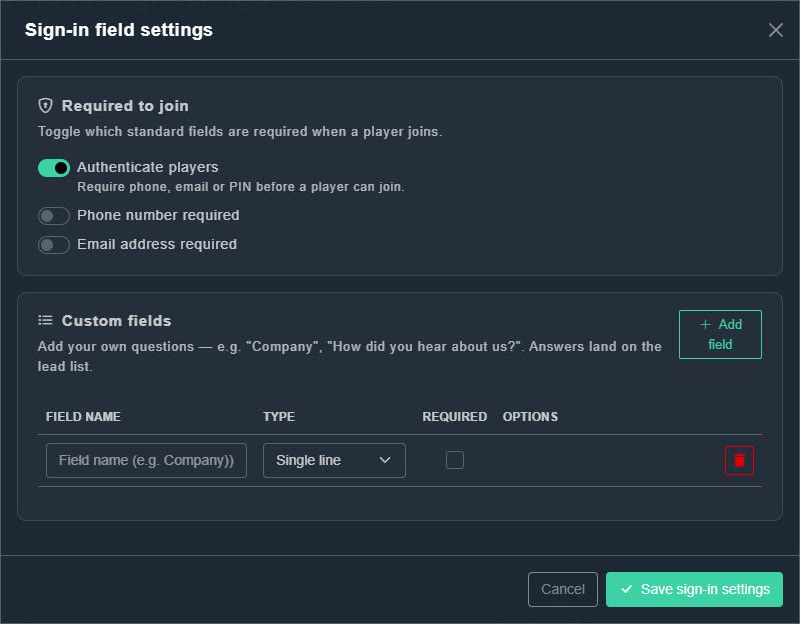
Sign-in field settings. -
Turn the switches on or off: Authenticate players (require phone, email or PIN before a player can join), Phone number required, Email address required.
Players will be asked accordingly.
-
Optional: choose Add field to ask your own question, such as "Company" or "How did you hear about us?". Give it a name, choose a type (for example Single line), and tick Required if needed.
The answer is saved to the lead list.
-
Choose Save sign-in settings.
The window closes and the card updates.