Scheduling creates an event in a Not started state. You get a QR code and access code straight away, but players can only join once you start the event.
#Choose the game
-
Open My Game Events and choose Schedule a new event. (You can also choose Schedule Event on a game's own page.)
A window titled Schedule a new event lists your games. You can search by name or category.
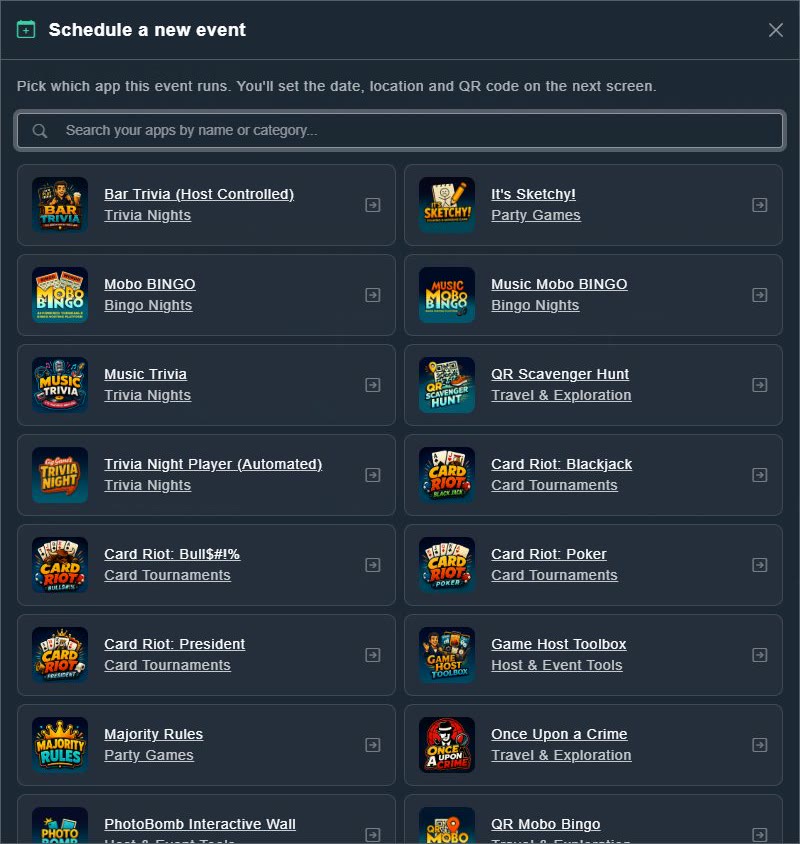
Pick which game the event runs. -
Choose the game.
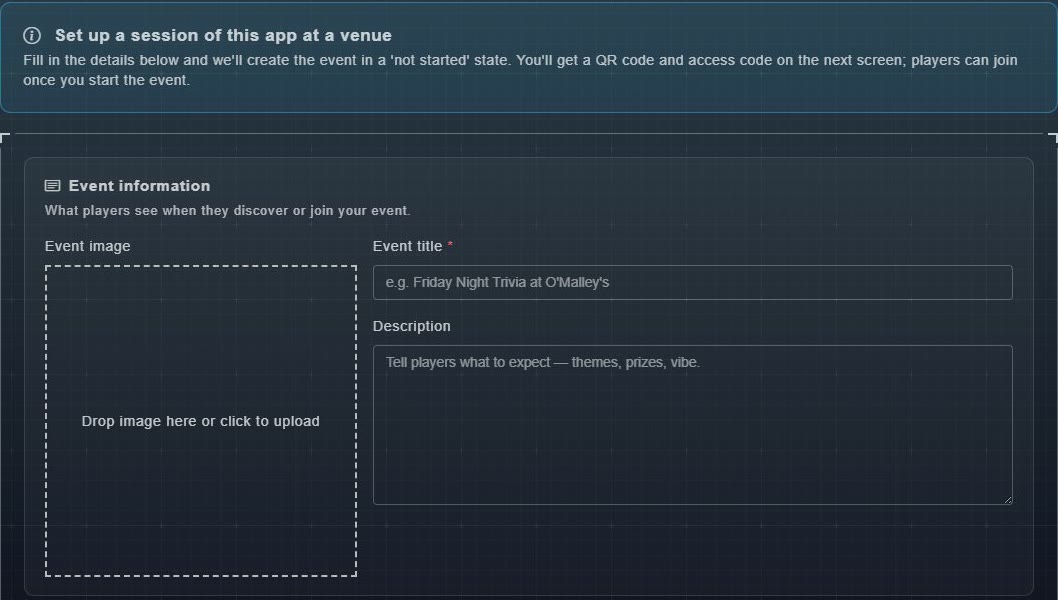
The schedule form opens. The banner reads: Set up a session of this app at a venue.
#Fill in the form
Event information
This is what players see when they discover or join your event. Event title is required. Event image and Description are optional; use the description to tell players what to expect.
When
Choose a Date and Start time, shown in your own time zone. You can leave both blank for an open-ended event, such as a month-long scavenger hunt.

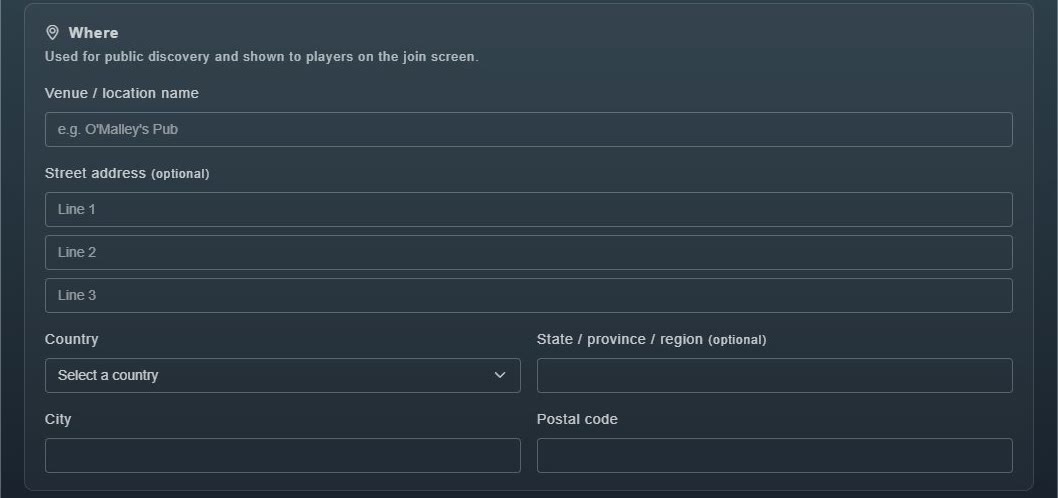
Where
Enter the Venue / location name, and optionally the street address, Country, State / province / region, City and Postal code. This is used for public discovery and shown to players on the join screen.
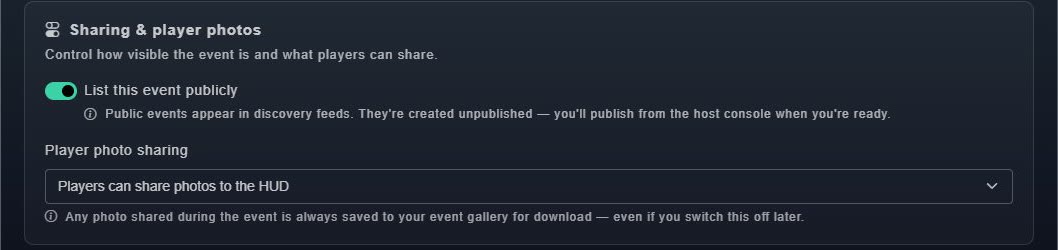
Sharing & player photos
List this event publicly controls whether the event appears in discovery feeds (see public events). Player photo sharing controls whether players can share photos to the big screen (see player photos).
#Save
-
Choose Save at the bottom of the form.
The event is created and its event page opens, marked Not started.