Once the QR code is on the big screen, players start to arrive. Here is what each side sees.
#In your Host Console
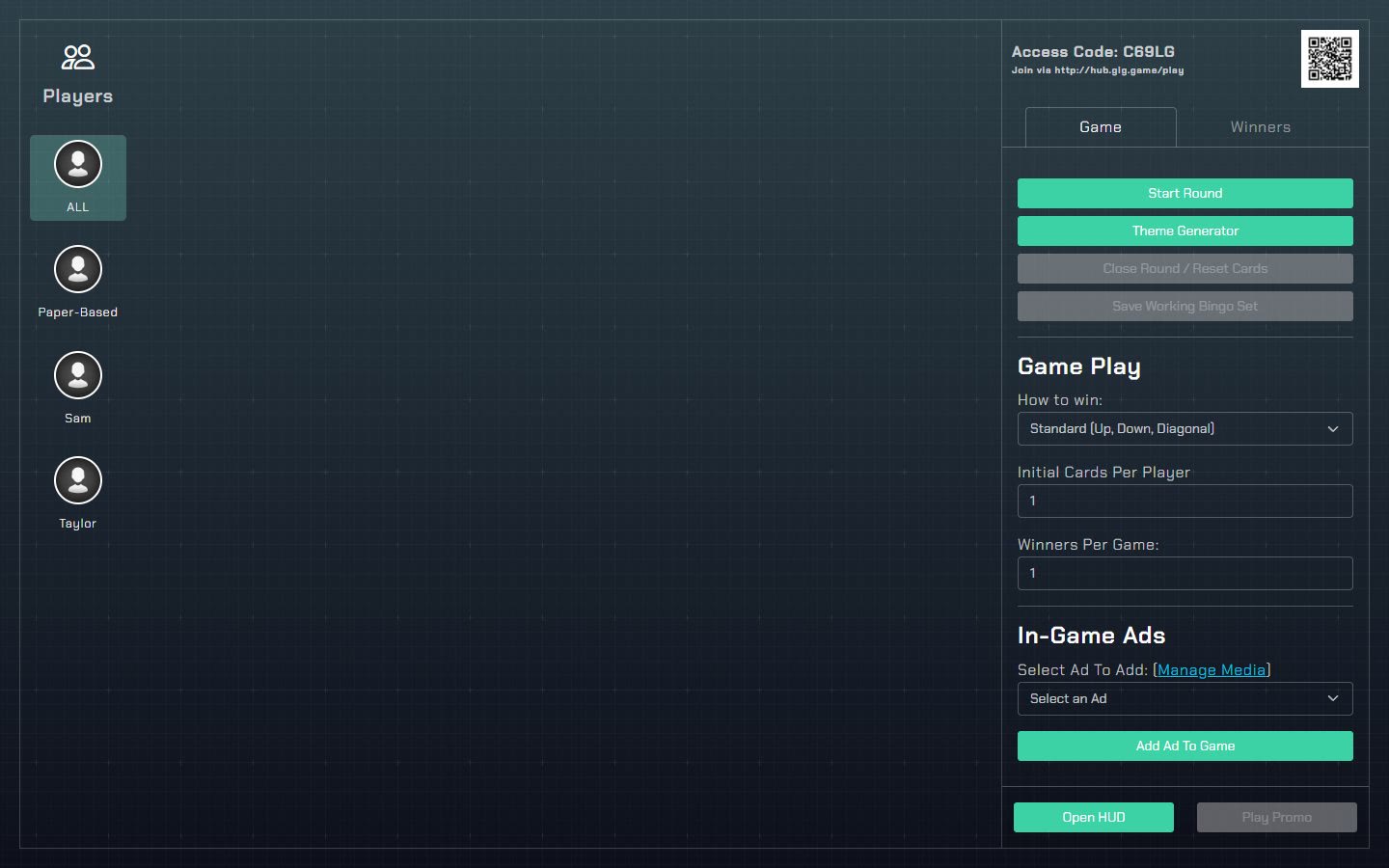
Each player appears in the Players list on the left as soon as they join, under the name they chose. In this example, Taylor and Sam have joined. Some games also list a Paper-Based player for printed cards. The rest of the console is the game's controls.
#On a player's phone
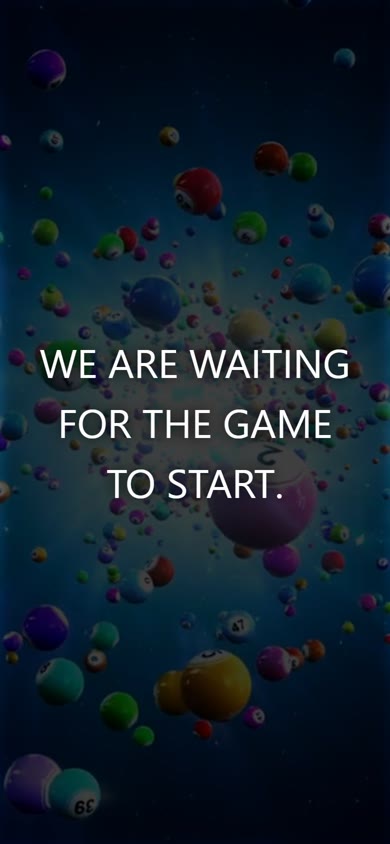
After joining, a player sees a waiting screen until you start the game. In this example it says We are waiting for the game to start. When you start, their screen changes to the game's controller: a bingo card, answer buttons, a buzzer or a drawing pad, depending on the game.
#Starting the game
Starting a round happens in the Host Console, and the controls are different for each game. For example, Mobo BINGO has a Start Round button. The guide for each game explains its controls in detail.
#If your game is full
Your plan sets how many players can be in one game, and the Player Limit button at the top of the Host Hub shows it. When a game is full, a player who tries to join sees a message that the game has reached its player limit. To host more players, look at the plans, or add capacity for a single event.