When the game is over, end the event. That tells players the game is finished and releases the QR code so it can be used again. Your event, its leaderboard and its player list are kept for your records.
#End the event
-
Open your running event. Choose My Game Events in the sidebar and then your event, or use the event page you opened when you started the game.
The event page shows Live now · QR code is in use.
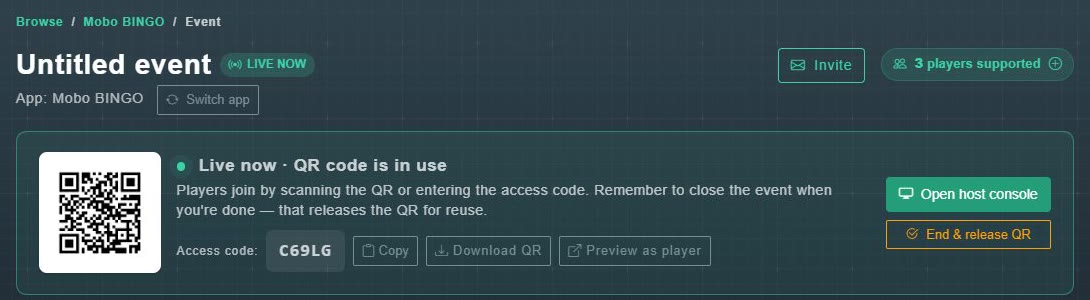
The running event. End & release QR is at the right. -
Choose End & release QR.
A message asks you to confirm: "Closing the event ends it for players and releases the QR code so it can be reused. Continue?"
-
Choose OK to confirm.
The event is marked Completed. The page says "This event is complete. The QR code has been released." and offers Delete event.
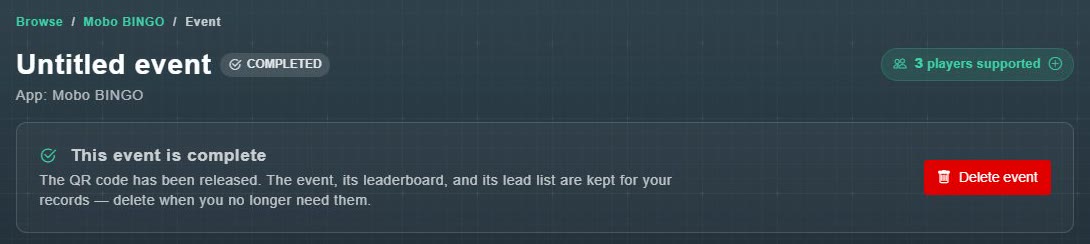
A completed event.
#What is kept, and what is not
- A completed event, its leaderboard and its lead list are kept for your records.
- A completed event cannot be edited or restarted. To play again, start a new game or schedule a new event.
- Delete event removes the event permanently, together with its leaderboard and lead list. Only delete an event when you no longer need that information.