Players join with a QR code or a short access code. Both lead to the same place, so use whichever is easier for your room.
#Where to find the code
| Where | What you will see |
|---|---|
| The big screen (HUD) | The access code and QR code appear in the corner of the HUD, so the whole room can see them. |
| The Host Console | The Access Code and QR code are at the top right. |
| The event page | A large QR code and the access code, with Copy, Download QR and Preview as player buttons. |
-
In the Host Console, choose Open HUD, and share the new window to your TV or projector.
The big screen shows your game, with the access code and QR code in the bottom-left corner. (The HUD button can have a different name in some games.)

The HUD shows the access code and QR code so the room can join. -
Ask players to scan the QR code with their phone's camera.
Their browser opens the game's join page. There is nothing to install.
-
Or ask them to go to giggame.app/play and type the access code into Game Code, then choose Continue.
They land on the same join page.
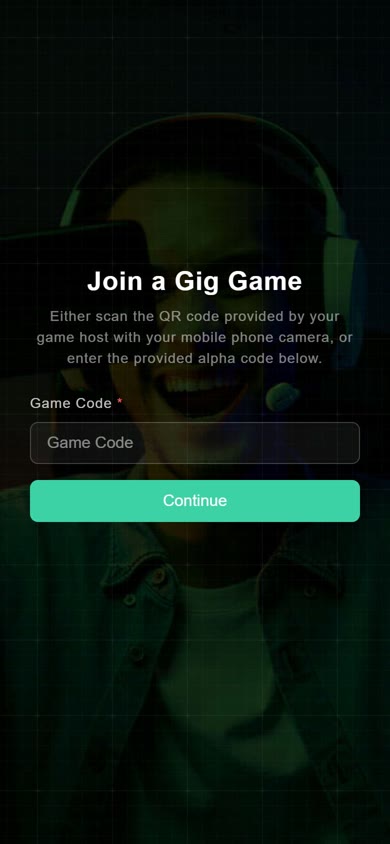
A player entering the access code. -
Players enter a Player Name and a short PIN, tick the box to agree to the Terms of Use and Privacy Policy, and choose Continue.
The PIN lets a player get back into the game if they get disconnected, so they use the same name and PIN to sign in again.
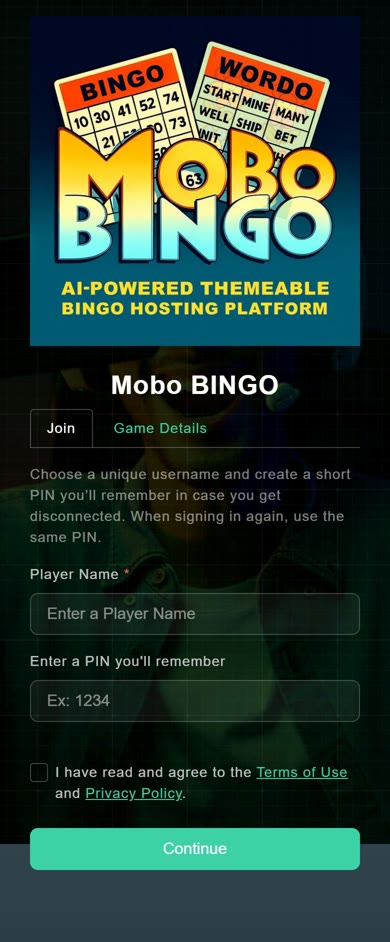
The join page. What it asks for depends on your sign-in settings.