-
On the Game Info tab (or Quick Trivia's Publish Setup), choose Browse beside Background Music.
The Select Background Music window opens.
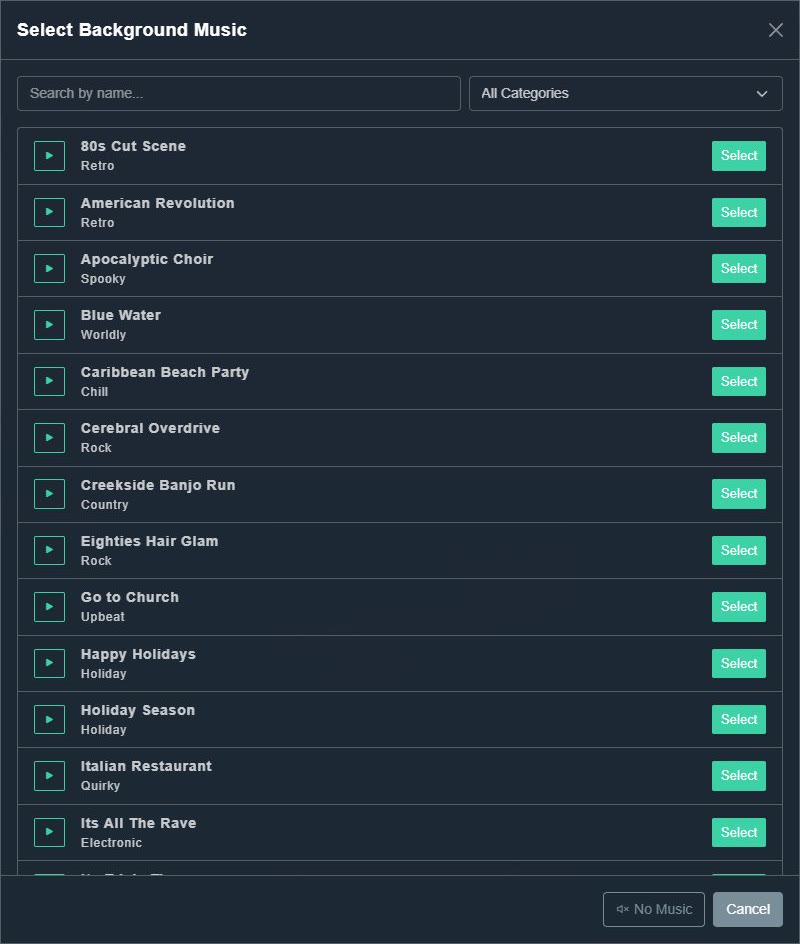
Select Background Music. -
Search by name, or filter by category: Chill, Country, Electronic, Funk, Holiday, Quirky, Retro, Rock, Spooky, Sports, Upbeat or Worldly.
The list shows each track's name and category.
-
Choose the square play button on a track to hear it.
You hear a preview.
-
Choose Select on the one you want. (No Music removes music. Cancel closes the window.)
The track appears under Background Music, with a small player so you can listen again. The cross beside it clears it.
Custom Trivia
How to choose background music
Browse the music library, preview a track, and choose one for your pack, or none.
Still need help?
Create a free account to try Gig Game, or contact us if you have a question before you start.