These steps apply to Automated packs. They give the show an AI host who talks, reacts and reads questions aloud. If you skip them, the AI chooses defaults for you when you publish. Quick Trivia and Host Controlled packs do not use them.
#Step 2: Host & Voice
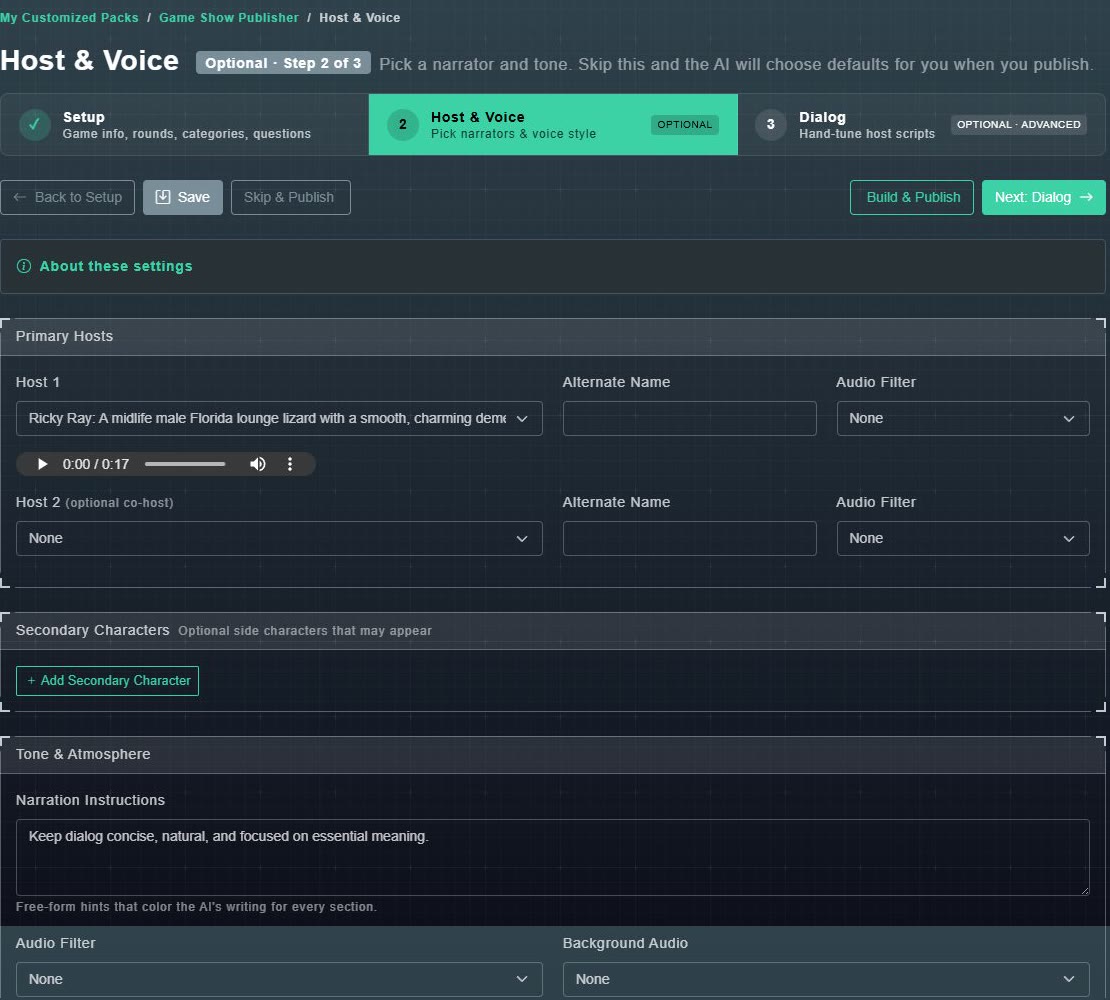
- Primary Hosts: pick Host 1 from the list of characters (each has a short personality description) and listen to a sample. Optionally pick a Host 2 as a co-host. You can set an Alternate Name and an Audio Filter for each.
- Secondary Characters: optional side characters that may appear. Choose Add Secondary Character.
- Tone & Atmosphere: Narration Instructions are free-form hints that colour the AI's writing for every section (the default is: Keep dialog concise, natural, and focused on essential meaning.), plus an overall Audio Filter and Background Audio.
There are thirty or more named voice characters, each with its own personality.
Your pack has a default host voice (or two, with dual narrators), chosen once on this step and previewable with a sample clip before you commit. You can override the voice for a particular situation, and you can apply an audio filter (Telephone or Robot) per line, per script or per situation.
#Step 3: Dialog (advanced)
The step says: Advanced step - you don't have to be here. If you just want a great game show, head straight to Build & Publish and the AI will write everything. Stay only if you want to hand-tune specific host lines, swap voices per script, or add situational variations.
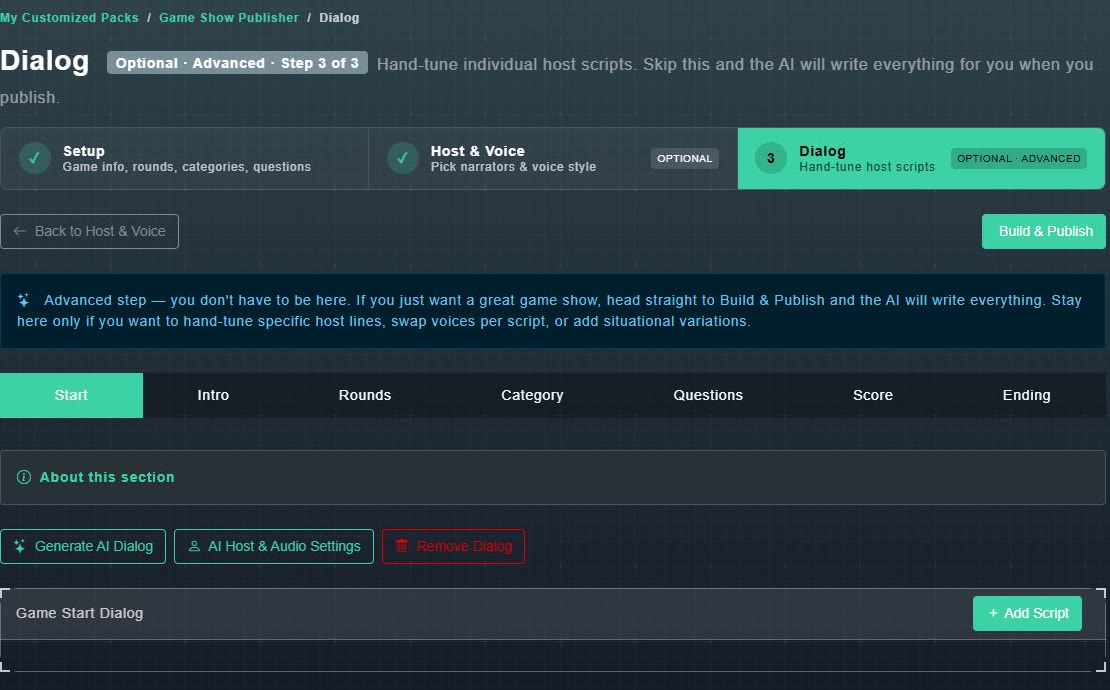
- Seven tabs cover the moments of a show: Start, Intro, Rounds, Category, Questions, Score and Ending.
- Start is pre-game banter, Intro is the host or hosts introducing themselves, Rounds is spoken at the start of each round, and Score is the end-of-round score reveal. Category covers a player picking a category, plus reminder and timeout lines if they are slow. Questions covers the dialog around each question (before it is asked, asking it, after answers are locked in, and revealing the answer), and is the one tab where you can target dialog at a specific question category. Ending is the closing farewell. Each round also has a catch-all Other bucket for anything that fits none of these.
- Generate AI Dialog writes 1 to 10 new scripts per click for the section (one on the Questions tab). AI Host & Audio Settings adjusts who speaks and how. Remove Dialog clears it. Add Script adds one by hand (not on the Questions tab, where each moment has a single script).
- Every generated line can be edited by hand: rewrite the words, change which character says it, and add or delete scripts. There is no per-line regenerate button, so if a line is not working, edit it or delete the whole script and generate a fresh one. Generating and rendering voice are background jobs. While one runs, the pack is locked, the page shows a Workflow Status panel, and it refreshes when the job is done.
- Render Voice turns a finished script into spoken audio. To edit a script that already has audio, unlock it first, which discards that audio, and render it again afterwards.