Quick Trivia is the fast lane. You add questions on one screen, then set up and publish on a second. It gives up categories, multiple rounds, difficulty tiers and AI-generated host dialog and voice, in return for speed.
-
In the sidebar choose My Question Catalog, then the Quick Trivia tab. (Create & Run A New Trivia Pack on the My Trivia Packs page also leads here.)
Your Quick Trivia workspace opens. The first time, a blank one is created for you.
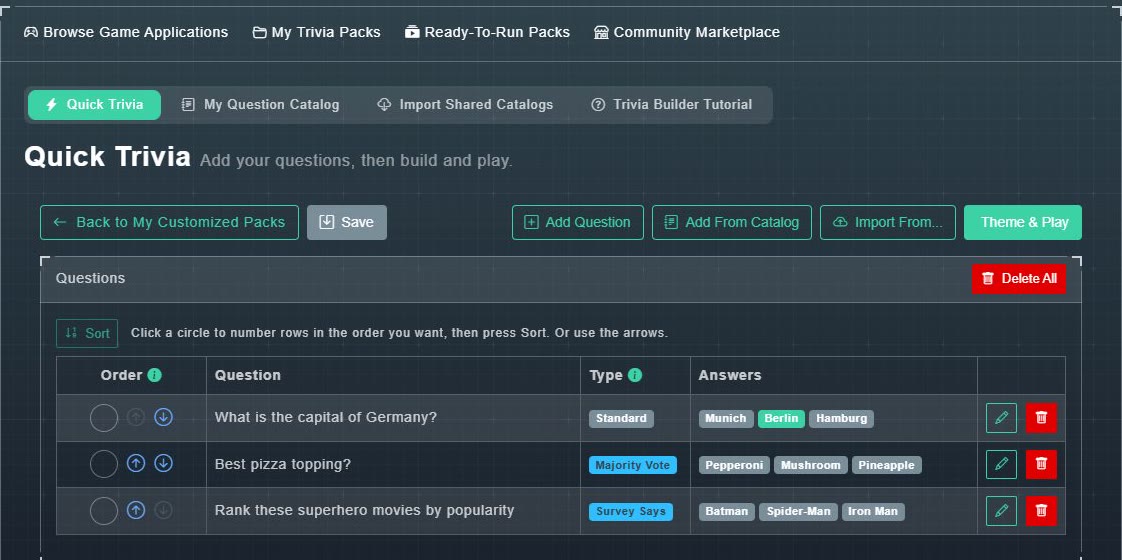
The Quick Trivia workspace. -
Add questions with Add Question, Add From Catalog or Import From.... See adding questions.
Your questions appear in the table with their type and answers.
-
Put them in order. Use the up and down arrows on a row, or click the numbered circles in the order you want and choose Sort.
Quick Trivia always plays in a straight sequence. There are no categories.
-
Choose Theme & Play.
The Publish Setup screen opens.
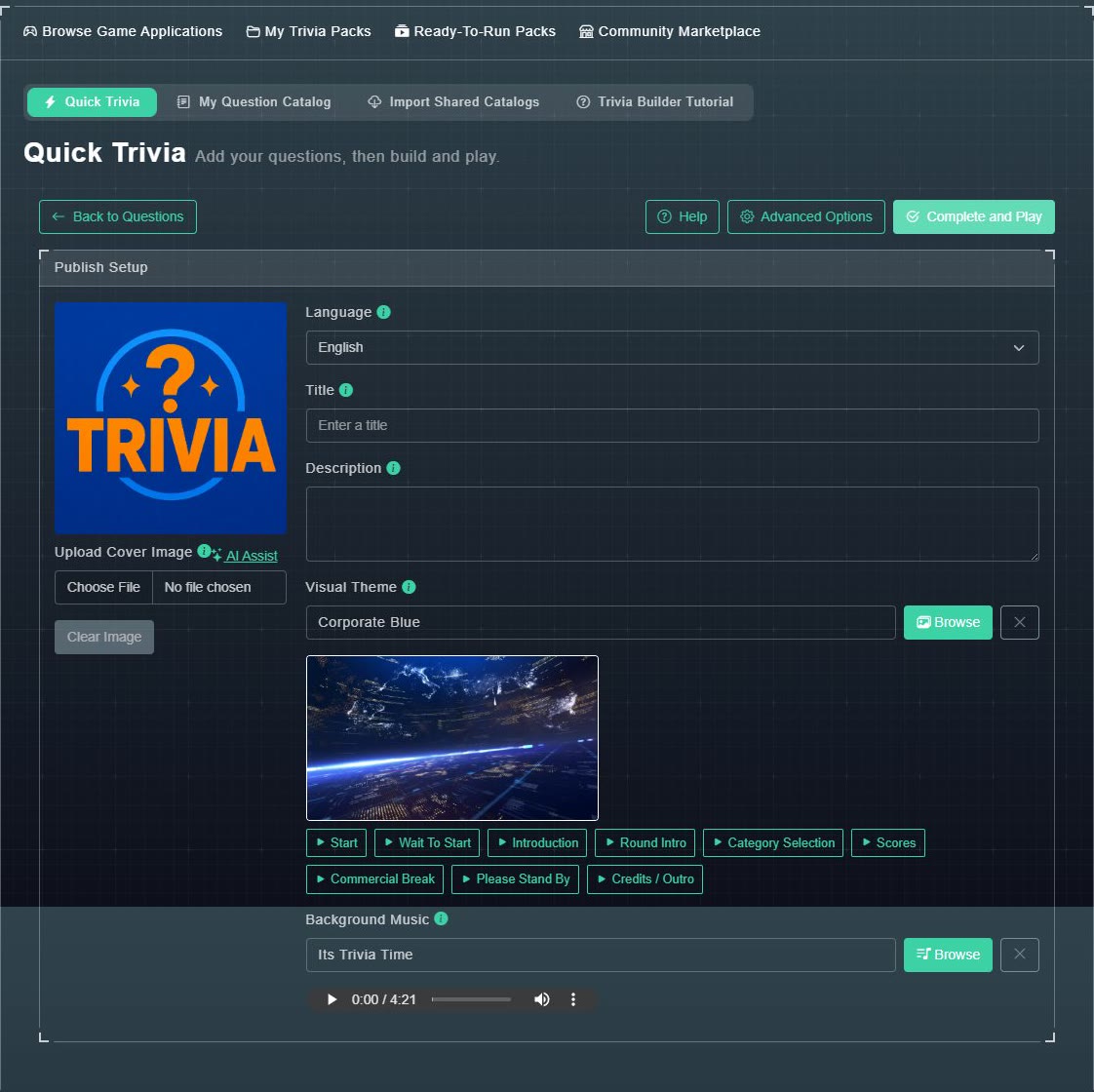
Publish Setup. -
Optionally add a cover image (a default cover is used if you skip it), a Title, a Description, a Visual Theme and Background Music.
Your game has a look and a sound. Themes and music are covered in their own articles.
-
Choose Complete and Play, or Advanced Options.
Both save your workspace as a brand-new, independent trivia set. See below for the difference.
#Complete and Play, or Advanced Options
| Button | What happens |
|---|---|
| Complete and Play | Saves and publishes the set instantly (there is no AI voice to wait for), then asks how you want to play it: Open in Automated or Open in Hosted. |
| Advanced Options | Saves the set as a Draft, publishes nothing, and opens it in the full builder. Use it when you want categories, rounds or AI voice before anyone plays. |
Advanced Options has no title requirement and no minimum number of questions, so you can use it even on a half-finished workspace.
Publish Setup also offers a Custom Theme with your own background for each screen, picked from the library, uploaded, or AI-generated (AI Image and AI Video tabs). AI videos you make are saved to your own library for reuse. See visual themes and custom screens.